Category Archives: Apple
The Type A – pple Approach To Detail. Apple’s Obsession With Perfection
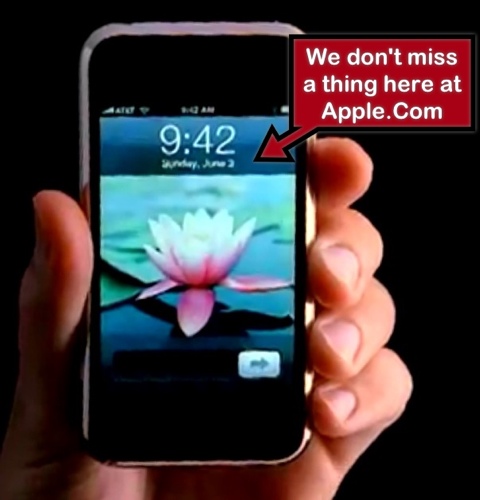
This little Monday morning tidbit breaks me up!
I guess excellence really is in the details. And Apple -thanks to Steve Jobs – has proven time and again that this motto is firmly embedded in the work ethic of their employees.
From their meticulous attention to packaging and design, to their life-changing products and their compelling presentations and events, Apple has relentlessly taken a Type A approach to the manner in which their products are unveiled to and viewed by the consumers.
Now, a new tidbit has surfaced thanks to RedmondPie.Com, addressing the mother of all of Apple’s penchant for detail, perfection and precision.
According to the article, there is a valid reason why the IPhone’s time is always set to 9:42 in Apple’s advertisements. And, if you are a fellow Type A, you’re going to love this!
Here is an excerpt from RedmondPie.Com’s article:
A bit of Google-fu tells us that Apple VP Scott Forstall has also weighed in on the story, and we much prefer his take on things. While the story does fit with Borchers to some extent, Forstall says that the 9:42 reference comes from Apple wanting the iPhone’s image to pop up on the big screen at around the 40-minute mark of Apple events. Apple eventually plumped for 9:42, so that the time on the image would match, as near as possible, the actual time when the latest handset is shown off.
“We design the (product launch) keynotes so that the big reveal of the product happens around 40 minutes into the presentation. When the big image of the product appears on screen, we want the time shown to be close to the actual time on the audience’s watches. But we know we won’t hit 40 minutes exactly.”
The story might also explain why the iPad tends to have a time of 9:41 in press images, with a similar story being true. While the times might not line up exactly during the keynotes at which new iPhones and iPads are announced, it tends to be fairly close at least.
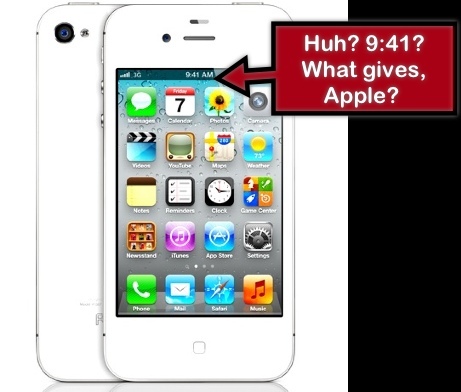
However, on Apple’s IPhone page, the IPhone is set to 9:41. Very perplexing, but close enough.
Is that jaw-dropper or no? Who thinks up this stuff? Pretty incredible!
Airport Utility and Time Machine 7.6.1 Nightmare Morphs Into Sweet Dreams

It’s official. You can’t geek and babysit grandchildren at the same time.
All was fine with my Time Machine/Time Capsule set-up – until Airport Utility’s 7.6.1 update. Then, it malfunctioned, leaving me in a state of digital confusion. What to do? What. To. Do?
Update: I also updated Time Capsule’s firmware to 7.6.1.
Plus, I was in grandmother mode here and really couldn’t multi-task with a toddler running around the house.
So, this was the problem. After I updated Airport Utility and Time Capsule, the annoying amber light on my Time Capsule started to flash and flash. What the…?
Plus, my grandson was vying for my attention, So, basically, all hell was breaking lose in my house.
So, I forged on. I had some supper (at least I think I did) and, later that evening, I strolled to the Apple support forums, already rampant with geeks who were experiencing the same problem. The popular suggestion was obvious – simply reset the Time Capsule.
So, after a couple of reset attempts, I did get the Time Capsule up and running, smoothly backing up my data via Time Machine.
However, this time around, I configured the Time Capsule to act as an extension of my regular wireless network. Previous to this, I was using it solely for Time Machine back-ups.
So, something was wrong – the amber light was still flashing! Honestly. When would this end?
I toyed with the idea of calling in a tech person but the idea of someone else in my house after a marathon few days of babysitting one of my grandsons was too much to bear. Plus I didn’t need a patronizing look from a tech coming to rescue a senior citizen in distress. Plus plus – I needed something to blog about!
So, for extra precaution, I hooked up the Time Capsule to my server’s router – just to cover all the bases, so to speak.
Previous to this, it was performing exceptionally well via my wi-fi, but I wanted the security of a wired set-up until I figured out the reason for the flashing amber light.
However, upon doing this, I was receiving messages via Airport Utility that I was not connected to the Internet, didn’t have a valid IP etc., yet, at the same time, all was running smoothly in terms of my Internet and Time Machine back-ups.
So, I detached the Ethernet from my Time Machine(I don’t know why. I just did.), i think, at the time, I thought it was plugged into the wrong slot on the back of Time Machine. Who knows? I was grasping at straws here.
I then plugged it back in and, when I checked Airport Utility this time, I received an error message that frantically had me searching the help menu in Airport Utility. Apparently, my Time Capsule needed to be configured for bridge mode. What’s bridge mode? Time to find out!
I strolled over to the Apple Support Forums to see if this bridge thing was indeed a good thing or not – but not before I checked on the status of my Time Machine back-ups. All was still fine. Good!
Apparently, Time Capsule, when attached to another router, can act as a bridge, if you are not using the Time Capsule as your main base station or router.

So, I care.fu.lly. followed the instructions and activated bridge mode for my Time Capsule and voila! A steady, strong and glowing green light appeared on my Time Capsule! Problem solved!
Now I know why green is my favorite color. It’s the color of nature and money and all good things, the most important being digital harmony.
For the younger geeks this may not have been a biggie, but for little ‘ole senior me, it was. So stop laughing.
In the near future, I will be vacationing in the vicinity of an Apple Store where I know I will be spending a great deal of my time. One is never to old to learn and I want to learn from the best.
I should just camp-out in front of the store. What could go wrong? The Food Court is just upstairs and boasts a Starbucks, so what could be finer?
You know, Apple should just bite the bullet and build iHotels for the truly geeky people in the universe. Or better yet – a retirement home for senior geeks such as myself. Can you imagine? An iHome for golden geeks! One can only dream.
So, anyone else have problems with their Time Machine after the Airport Utility update? Did I miss something? Share your thoughts in the comments section.

I Downloaded Lion To My IMac And Lived To Tell About It

So, okay, that was easy. After months of trepidation, I finally took the plunge and downloaded Lion OS X. All that hemming and hawing and scare tactics from other Mac users that Lion was going to destroy my Mac were in vain. The Lion update downloaded and installed seamlessly.
Now, mind you, it did take time. The update takes up 3.97 Gigs on your Mac – that is pretty huge, so one has to set aside 5-6 hours to complete the entire process. Perhaps less if you have a strong wireless connection.
But, when all was said and done and the computer went through the restart phase to seal the deal, I was greeted with the face of a Lion accompanying my login information. And, guess what? The beastly critter didn’t bite at all.
All my files, media and applications were visibly intact and, quite frankly, I found that my 24″ IMac was operating smoother. And quicker!
Now, I know you’re wondering what motivated me to take the plunge after all these months. And, even if you don’t care, I’ll tell you anyway.

It was the newly-released Mac App, IBooks Author, that prompted me to take the leap. I have been waiting for a program like this forever and a day. The ability to design your own interactive e-book intrigued me and I needed the Lion upgrade to grab the free App from the MacApp store.
More about this at another time – I hope to review this cool App very soon.
Going back to Lion – a few words of caution. There is a great deal of documentation out there regarding how to prepare your computer for the upgrade. You have to sift through the plethora of information to filter out right from wrong.
Over the past few months, I have been reading many articles – some excellent, others not so -just to make certain that my computer was ready for the upgrade.
I would advise all of you to do so. I learned a great deal in the process and it made me realize the powerful creativity of Lion and of technology in general.
I have provided links at the end of this article to the very best guides. They should be your tech bible if you want to follow through with the upgrade.
Also, now is the time for you eliminate all the clutter on your computer. If there ever was a perfect time to house clean, this is it.
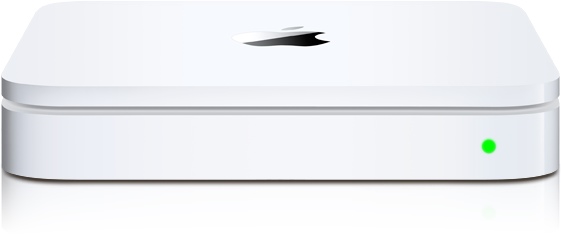
And backup your files and media. My computer uses Time Machine via Apple’s Time Capsule plus a couple of other external drives just to be safe.
Also, it won’t hurt to clone your hard drive. All this may seem like overkill, but it really isn’t. By taking the proper precautions via regular backups and cloning, you will rest assured that your data is safe and protected in the event that your computer fails somewhere down the road.
Now, if Apple would just bandage the gaping wound in their second generation Apple TV unit, I would be in Apple heaven.
As promised, here is a resource list of excellent articles that will transition you through to this next phase. Read them at your leisure, carefully, and don’t be afraid to ask questions or email the author for advice if need be.
Or here’s a thought – leave your comments and questions in the comments section attached to this blog topic.
Have you downloaded Lion already? Was it a success or no?
Upgrade To Lion: Only From The Mac App Store (Apple.Com)
Installation And Recovery (Apple.Com)
Installing Lion: Our Complete Guide (Macworld.Com)
Preparing Your Mac For OS X Lion (Mashable.Com)
OS X Lion: Installation Guide, Boot Discs and Q&A (MacStories.com)
Nine Things You Should Do After Installing OS X Lion (Techcrunch.Com)
Apple Second Generation TV Unit Just Doesn’t Work

For the love of Pete, can someone out there in Apple land fix the trainwreck known as Apple TV 2? It just does not work. Movies download sufficiently well but the problems begin when one wants to watch the rented film.
The movie takes forever to start and, when it does, invents its own commercial breaks by stopping and reloading in mid-scene. My favorite is when, during the last rented movie my husband and I tediously watched, the movie decided to reload approximately five minutes before the ending.
So, Apple people, instead of working on a future release of an Apple HDTV, how about fixing the little black box known as the Apple TV 2 unit first? This product needs to be recalled and/or repaired via an immediate software update.
I think the only thing more maddening about the deficiency of this Apple TV 2 gadget is Apple’s silence at the thousands upon thousands of consumers ranting on their message boards.
Steve Jobs must be rolling in his grave. He was all about consumer satisfaction and communication.
Since he died, the only headlines capturing our attention were the millions of shares shoved into CEO Tim Cook’s pocket. Like we care.
We do not begrudge Apple’s head honchos their financial due, but we do hold them to task when products do not work while the company fails to address the issues.
I am an Apple fan and it will take a cold day in hell before I defect. But remember, all fans are created differently and can be fickle, depending on their tolerance level.
How about you? Is your Apple TV 2 unit going wonky? Did you manage a magical fix? If so, share in the comments section.
Creating Memorable, Frame-Worthy Photos On The IPad Or IPhone

I love printing pictures of family members and then framing them for all to see and enjoy. It has become a full-time passion for me.
I am sure many of you enjoy it as well. So, I decided to share some tips on making what I think are spectacular pictures to hang on your wall.

Also, I decided to use a picture of Steve Jobs to demonstrate my work. I am a stickler for privacy here, so my personal pictures, unfortunately, are inaccessible for mainstream internet.
First of all, if you don’t have all your best photos on your IPhone or IPad, it is best to transfer them from your computer to the Photo App on your chosen device.
There are many ways to do so and ICloud has made this very easy. However, for those of you who do not have ICloud and/or want to use less current pictures, there is a wonderful App out there called PhotoSync
I first learned of PhotoSync from my friends at IPhoneInCanada.Ca. It has been a lifesaver for me, seamlessly and wirelessly transferring photos and videos between computers and devices.
And as a bonus, the PhotoSync Companion is available for Windows or Mac OS X
Plus, it comes packed with features aplenty.
The Mobile Apps are also quick and easy to install on your IPad or IPhone.
Then, once the transfer process is complete, you can further refine your photos before you add additional enhancements.

So, I always access a solid image editing tool like Photoshop Express for IPhone or IPad. It has the basic but all-important tool refinements like, noise reduction, sharpening, exposure, contrast, crop, rotate.
I am big on Noise Reduction. It is a thorough cleanser for the majority of pictures, adding a smooth, flawless texture. And the cropping feature is an important element as well. I used both on the Steve Jobs photo, pictured above.

Then, if you want to get down and funky, download the Camera+ App for IPhone. Unfortunately, there isn’t an IPad App for this photo imaging tool, but the IPhone version is just as efficient on the IPad.
You can achieve some really neat looks with the various options available via this neat image editor. I just love it. But be forewarned-it is terribly addicting.
For the Steve Jobs picture, I used the Diana effect with 84% intensity. But, there were many, many choices within this wonderful App. Just you wait!
And, save many different versions of the same picture. You’ll be glad you did. Depending on the color of your chosen frame, one version of an edited picture may work better than others.
Following this, the fun truly begins. There is a wonderful framing App out there call Imikimi for IPhone and IPad. Once downloaded, you will be treated to vast array of categories to suit every mood or event.
I can’t stress enough how exceptional this App is-it is the closest thing I have seen to digital scrapbooking.

You simply select a photo from your photo library and add it to the empty square box in the frame. Once you do so, you have more options at your disposal to position or enhance the picture.

I often save many different versions within the Imikimi App so I don’t clutter up my Photo App, but you can easily save all your framing projects to the Photo App on your IPad or IPhone.
If there is one drawback to Imikimi, it is the fact that the vast majority of the frames are sized for a square photo, as opposed to a 4×6 or 5×7 etc. Up in my neck of the woods, I found fairly reasonable frames at Michaels, but, depending where you live, you may have more options for purchasing these frames.
And the square formation is perfect for scrapbooking. It is totally your call.
Once you are done, you merely have to print out your picture, using premium photo paper of course.
Let the ink dry overnight, pop it into the frame or scrapbook and you are done. Except for the squeals of delight on the faces of family members and friends once they see your digital work!
Happy Framing! Happy Scrapbooking! And please leave your ideas and thoughts in the comments section.


 GrannieTheGeek.Com